
Blur an Image or a Face
This free tool blurs, pixelates or blacks out any part of a photo (a face, a license plate, an address) in your browser, replacing the pixels permanently rather than covering them over.
Drop an image here
JPG, PNG or WebP
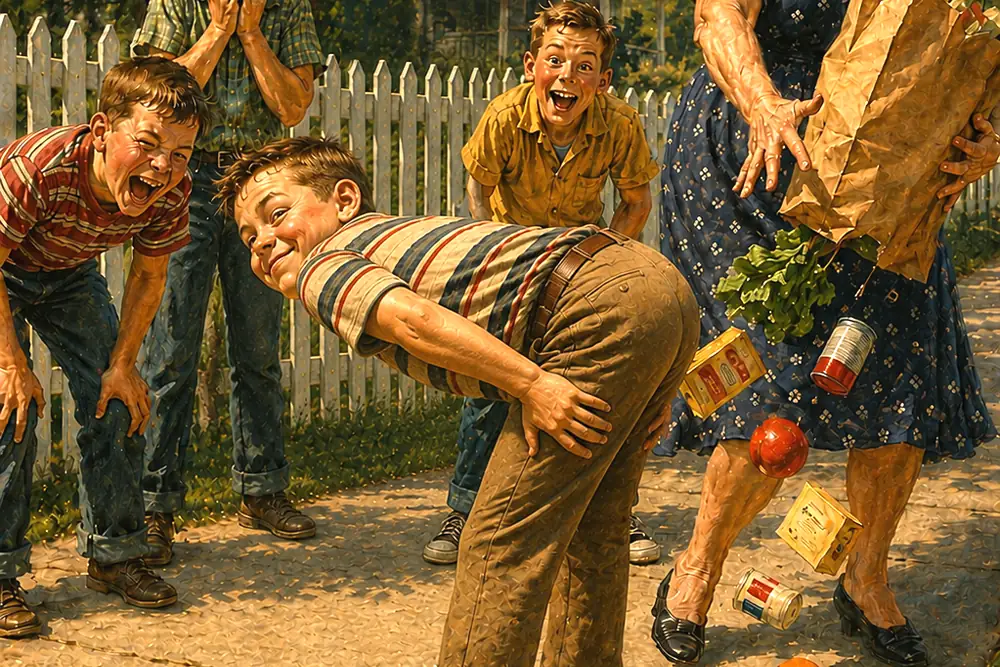
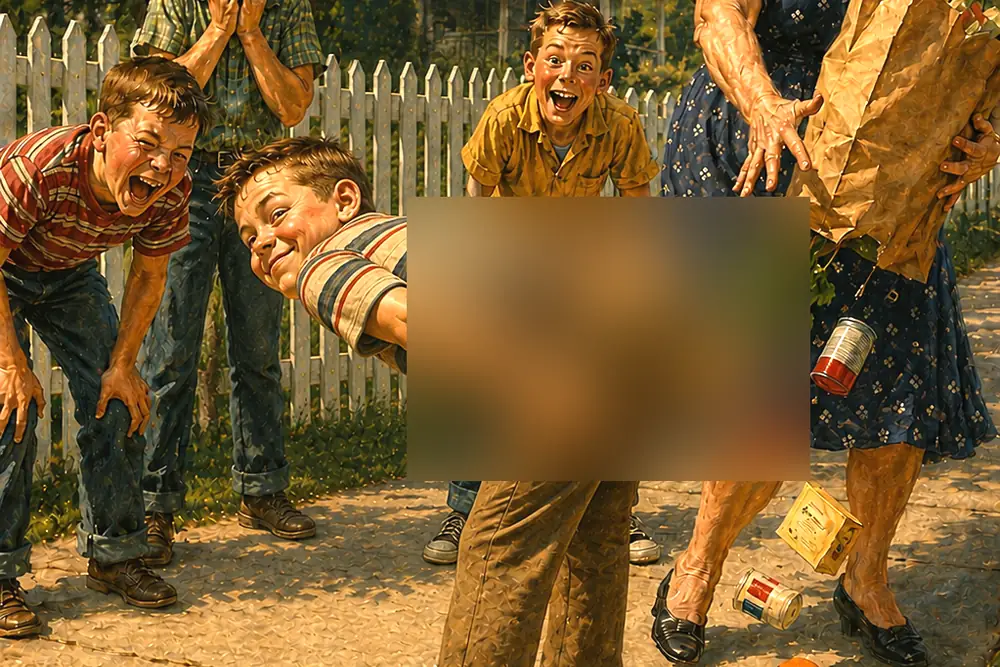 BeforeAfter
Runs entirely in your browser. Your images are never uploaded to a server.
How it works
- Drop a photo onto the box above, or click to choose one.
- Drag across anything you want hidden. Add as many areas as you need, and remove any you change your mind about.
- Pick blur, pixelate or a solid block, then download the result at full resolution.
Common use cases
- Blurring a face before posting a photo of a group or a child publicly.
- Hiding a license plate in a picture of a car you are selling.
- Covering an address, account number or signature on a scanned document.
- Removing a bystander's face from a holiday photo before sharing it.
- Hiding names and email addresses in a screenshot before sending it to support.
Frequently asked questions
- Can a blurred or pixelated image be reversed?
- Sometimes, and it is worth knowing before you rely on it. Blur and pixelation scramble detail rather than destroying it, so some information survives in the scrambled pixels. Pixelated text is the weakest case: there are a limited number of possible characters in a known font, so software can work backwards through the possibilities until it finds a match, and published tools do exactly that. For anything that genuinely must not be recovered (a license plate, an account number, an address), use the solid block option, which replaces the pixels entirely and leaves nothing to recover.
- Is the blur permanent, or just covering the image?
- Permanent. The pixels underneath are replaced, and the file you download contains only the redacted version. This is the difference that matters: drawing a black shape over a picture in a document or a PDF often leaves the original image intact underneath, which is how supposedly redacted files get published and then read straight away. Here there is nothing underneath.
- Does it work at full resolution?
- Yes. The preview is scaled down so it stays responsive while you work, but the areas you mark are tracked against the original image, and the redaction is applied at full resolution when you download. A 12 megapixel photo comes out as a 12 megapixel photo.
- How strong should the blur be?
- For a face, strong enough that you cannot identify the person when you look at the preview at full size. If you can still tell who it is, so can anyone else. The strength setting scales with the size of the area you marked, so a small distant face and a large close-up one are blurred equally hard at the same setting. For text or numbers, do not rely on strength at all; use a solid block.
- Does this also remove the location data from my photo?
- Yes, as a side effect. Saving the redacted image re-encodes it, which drops the EXIF metadata, including the GPS coordinates where the photo was taken. That matters more than people expect: blurring a face while leaving your home address embedded in the file defeats the purpose. If you want to strip metadata without changing the picture at all, the EXIF remover does that losslessly instead.
- Are my photos uploaded to a server?
- No. The image is read and redacted entirely by your own browser and never leaves your device. That is worth more here than on almost any other tool on this site, because the photos people need to redact are exactly the ones they would least like to hand to a stranger.
Related tools
Understand what this does
Plain explanations of what is happening to your file, and what it costs you.